



Your Essential GA4 Audit Checklist: Boost Your Website’s Performance
In today’s digital marketplace, data is the engine of growth. You rely on website analytics to understand customer behavior, measure marketing effectiveness, and make informed business decisions. With Google’s shift to Google Analytics 4 (GA4), ensuring the accuracy and reliability of this data has never been more critical. An improperly configured GA4 property can feed you misleading information, causing you to invest in the wrong channels or misunderstand your audience entirely.
This is where a systematic review becomes invaluable. By using a comprehensive GA4 audit checklist, you can proactively identify and fix issues, transforming your analytics from a source of confusion into a powerhouse of strategic insight. A regular audit ensures your data is clean, your tracking is precise, and your reports reflect the true performance of your website.
1. Verifying Foundational Setup and Configuration
The foundation of reliable analytics is a correct setup. Errors at this stage will cascade through all of your data, rendering it untrustworthy. Start your audit by examining the core configuration of your GA4 property.
- Tracking Code Installation: Is the GA4 tracking code (G-tag) installed on every single page of your website? Use your browser’s developer tools or a tag assistant extension to verify its presence. A missing tag on key landing pages or checkout steps creates significant data gaps.
- Data Streams: Check your data stream settings. Ensure the correct website URL is listed and that enhanced measurement is enabled to automatically capture important interactions like scrolls, outbound clicks, and file downloads.
- User Access and Permissions: Review who has access to your GA4 property. Remove former employees or agencies and ensure current users have the appropriate permission levels (Administrator, Editor, Analyst, Viewer) to prevent accidental changes.
Here is a quick checklist for your foundational review:
| Audit Point | Check For | Status (Pass/Fail) |
|---|---|---|
| GA4 Tag Presence | Tag fires on all key pages (homepage, services, contact, blog) | |
| Data Stream URL | Matches your website’s primary domain (e.g., https://www.yourdomain.com) | |
| Enhanced Measurement | Enabled and tracking relevant user actions | |
| User Permissions | Access is limited to current, authorized personnel |
2. Auditing Event Tracking and Conversion Goals
GA4’s event-based model is a significant departure from Universal Analytics. Everything is an event, from a page view to a purchase. This flexibility is powerful, but it requires careful configuration to be meaningful. Your audit must scrutinize how these events are collected and classified.
- Recommended vs. Custom Events: Are you using Google’s recommended events (like `generate_lead` or `sign_up`) where applicable? Using standardized names helps GA4’s machine learning better understand your data. For unique interactions, ensure your custom event names are clear and consistent.
- Conversion Tracking: The most important events are your conversions. In GA4, you simply mark an existing event as a conversion. Double-check that key actions—like form submissions, demo requests, or purchases—are correctly marked. Are you tracking too many things as conversions, diluting the importance of your primary goals?
- Event Parameters: Events are more powerful with context. Are you sending relevant parameters with your events? For example, a `file_download` event should include a `file_name` parameter to tell you which file was downloaded.
3. Ensuring Data Quality and Integrity
Raw data is often messy. A crucial part of your GA4 audit is cleaning it up to ensure your reports reflect genuine user activity, not spam or internal noise.
- Internal and Developer Traffic: Your team’s activity on the website can skew metrics. Create and apply an IP address filter to exclude traffic from your office and remote employees.
- Referral Exclusions: If you use a third-party payment gateway (like PayPal or Stripe), their domain might show up as a major traffic source, breaking the user journey. Add these domains to your list of unwanted referrals to attribute the conversion to the original source.
- Data Retention Settings: By default, GA4 only keeps granular, user-level data for 2 months. You can and should change this setting to 14 months to enable longer-term analysis in Explorations. Check this setting in your property’s admin panel under Data Settings > Data Retention.
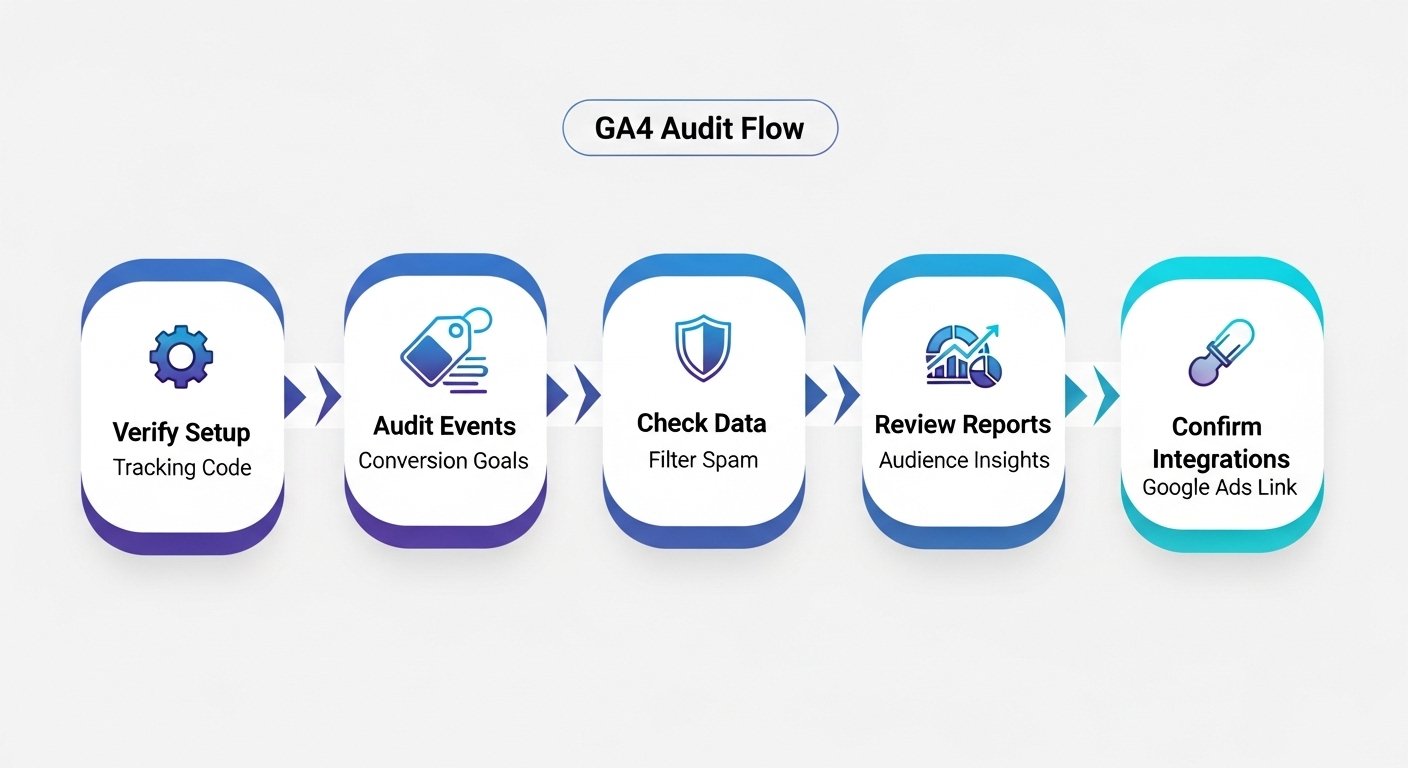
4. Reviewing Reporting and Audience Insights
Accurate data is only useful if it’s accessible and understandable. The final steps of your audit involve making sure your reporting and audience segmentation are set up for success.
- Custom Reports: Are the standard reports providing the answers you need? If not, have you built custom explorations or customized the main reporting interface to surface the KPIs that matter most to your business?
- Audience Definitions: Audiences are essential for remarketing and analysis. Review your audience definitions. Are they capturing the right users? For example, is your ‘Engaged Users’ audience defined meaningfully? Is your ‘Cart Abandoners’ audience correctly identifying users who leave the checkout process?
- Attribution Settings: Review your property’s attribution model. The default is ‘Data-driven,’ which is often best, but it’s important to understand what it means and confirm it aligns with your business model.
5. Checking Key Platform Integrations
GA4 becomes exponentially more powerful when connected to other Google platforms. Verify that these crucial links are active and sharing data correctly.
- Google Ads: Is your GA4 property linked to your Google Ads account? This is essential for importing conversions, building remarketing audiences, and seeing ad performance data within GA4. Check that auto-tagging is enabled in Google Ads. You can find linking options in the GA4 Admin panel.
- Google Search Console: Linking Search Console allows you to see how your organic search performance impacts website behavior. It adds valuable reports on search queries and landing page performance directly in the GA4 interface.
- BigQuery: For businesses with large data volumes or a need for advanced analysis, linking to BigQuery provides a raw data export. While not for everyone, it’s a powerful feature to be aware of.
Frequently Asked Questions about GA4 Audits
How often should I perform a GA4 audit?
A full, in-depth audit is recommended at least once a year or after any major website changes. However, a lighter, monthly check-in on key metrics like conversion tracking and data sources is a good practice to catch issues early.
Can I do a GA4 audit myself?
Yes, business owners with a solid understanding of analytics can perform a basic audit using a checklist like this one. However, for complex setups, custom event tracking, or deep data integrity issues, a professional’s expertise can be invaluable.
What is the most common mistake found during a GA4 audit?
One of the most frequent and impactful errors is improper conversion tracking. This includes not marking key events as conversions, accidentally counting a minor event as a conversion, or having broken tracking on a thank-you page, leading to a complete misrepresentation of business performance.
A thorough GA4 audit checklist is your roadmap to data confidence. By regularly validating your setup, you ensure that the insights you gather are accurate, actionable, and aligned with your business objectives. Don’t let bad data dictate your strategy. Take control of your analytics to unlock your website’s true potential and drive sustainable growth.
If you’ve gone through this checklist and feel overwhelmed, or if you want an expert eye to ensure your analytics are perfectly tuned for performance, Digimek is here to help. Contact us today for a professional GA4 audit and analytics consultation.
